Interactions and AI insights
Every completed call and conversation is stored as an interaction on the customer's timeline, together with its transcript and an AI analysis: a subject line, a summary, sentiment, outcome, topics, tags and any extra fields your prompt template asks for.
How interactions are created
Floor Walker creates interactions on its own; agents don't have to do anything.
Conversations (chat, SMS, WhatsApp, web chat)
When a messaging task is completed, the conversation's messages (up to 500) are collected from Twilio Conversations, labelled agent or customer, and stored with the interaction. A conversation processed twice replaces the earlier version rather than creating a duplicate.
All messaging channels are stored with the type Chat; the actual channel is kept as well. Email tasks are not processed.
Calls
Calls need a recording to transcribe. There are two sources:
- Twilio call recordings. When call recording is turned on for Flex, Twilio reports each finished recording to Floor Walker, which keeps a copy of the audio.
- The Screen Recorder's audio. When an agent with the Screen Recorder handles a call, the app uploads the call audio with the screen recording.
The audio is transcribed by the speech-to-text service configured for your installation, with the speakers separated. When the transcript is ready, Floor Walker runs the AI analysis, finds or creates the customer, and stores the interaction with the type Voice.
Analysis
The transcript is sent to the language model configured for your installation together with the matching prompt template. The model returns JSON, which is stored with the interaction and turned into searchable tags.
- If the analysis fails, the interaction is still stored with its transcript, without insights.
- Very short content (under 10 characters) gets placeholder insights.
- Changing a template only affects new interactions. There is no button to re-analyse old ones.
The AI services and the model used are chosen for your installation; ask us if you need a different one. If no AI service is configured, interactions are stored without insights. See Security and data for how conversation data is handled.
What agents see
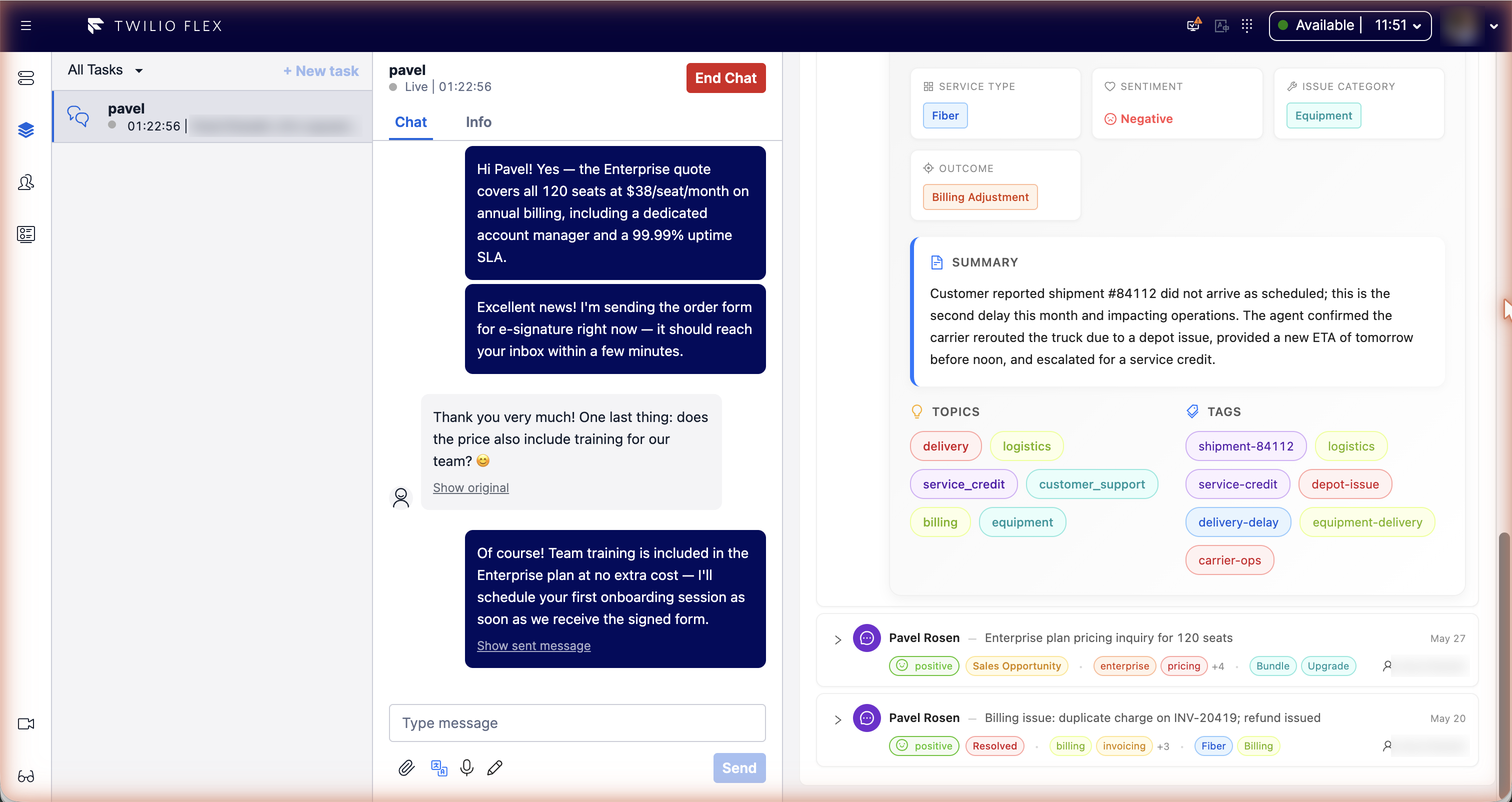
In the customer panel next to a task, Recent Interactions lists the customer's last 10 interactions with their subject, sentiment, outcome and tags. Expand one for the full analysis, or open Conversation Transcript to read it with agent and customer labels.
The Interactions tab
Admins open CRM in the side navigation, then Interactions, to browse all interactions.
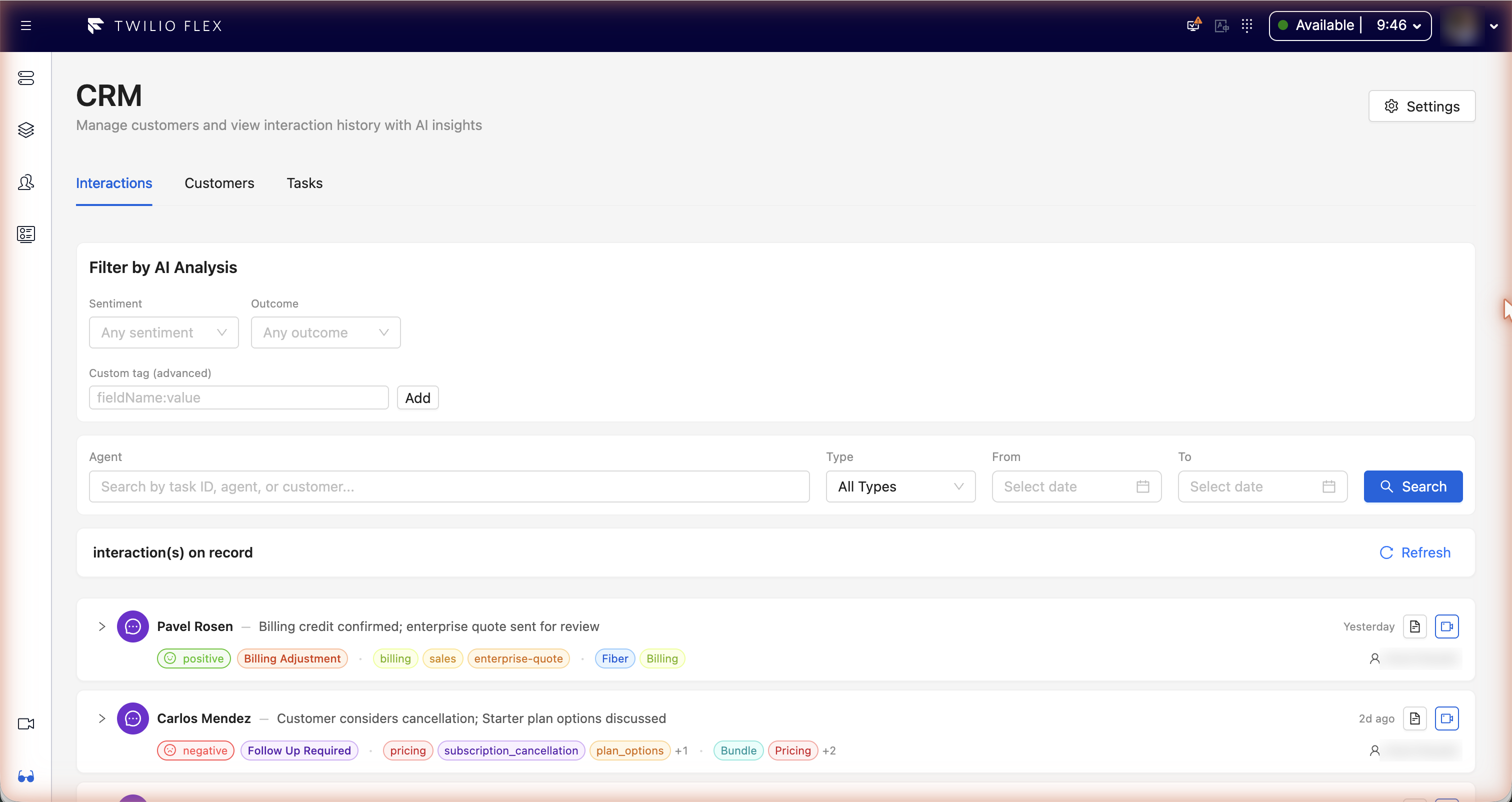
Filters:
| Filter | Notes |
|---|---|
| AI fields | One dropdown per filterable field of the template, for example sentiment and outcome. |
| Custom tag (advanced) | A field:value pair, or a single word that matches any field. |
| Match ALL filters / Match ANY filter | How several AI filters combine. |
| Agent | The agent's worker SID (exact). Ignored when an AI filter is set. |
| Type | All Types, Voice or Chat (Chat covers every messaging channel). |
| From / To | Interaction start date, in whole UTC days. |
Each row can be expanded to show the analysis, and has buttons to read the transcript and play the screen recording of the task.
Searches with AI filters return up to 50 interactions. To find a customer's interactions, search the customer on the Customers tab and open their detail.
Prompt templates
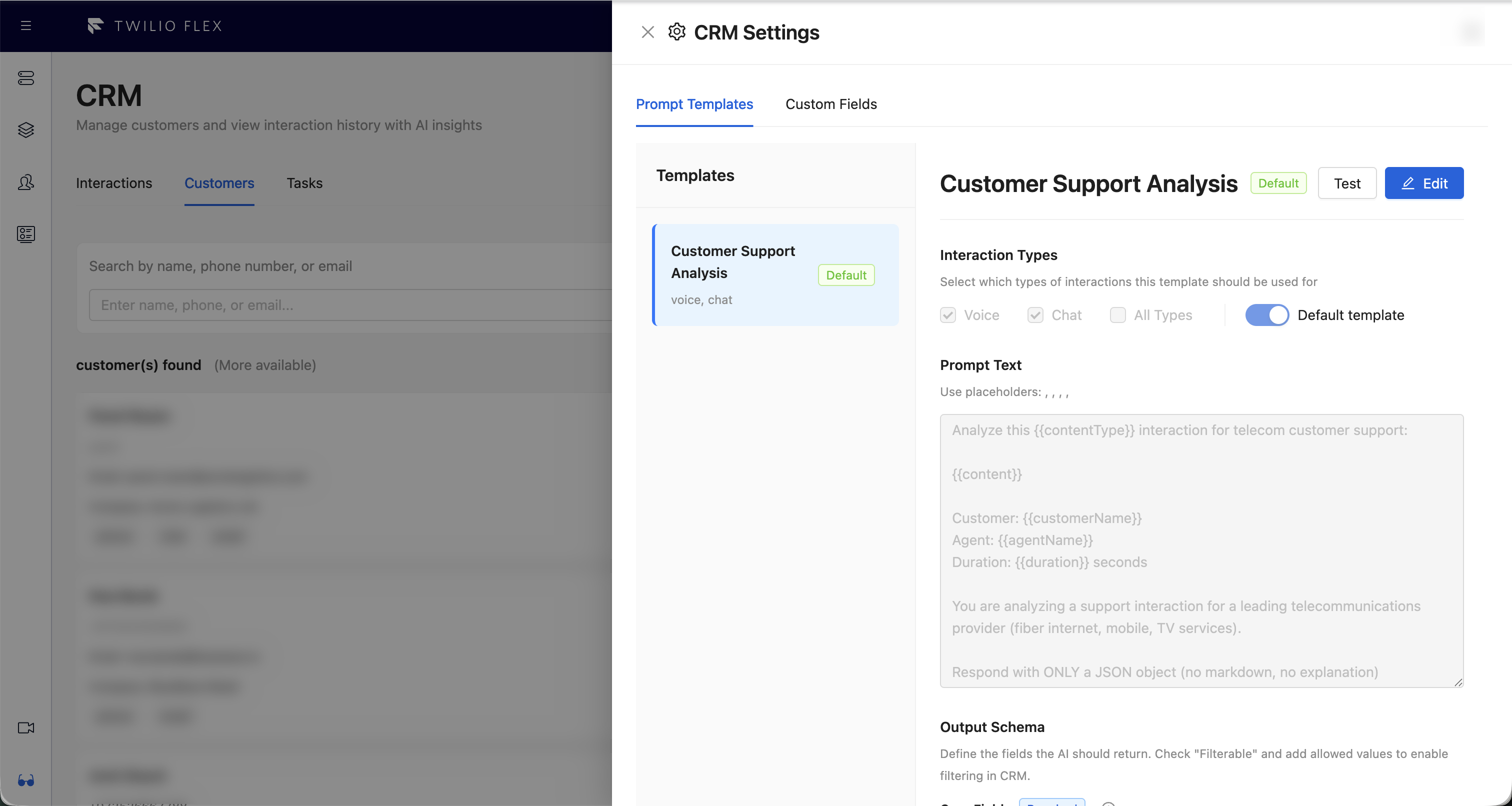
A prompt template is the instruction sent to the model, plus the shape of the answer you expect. Admins manage templates in CRM, Settings, Prompt Templates.
Editing a template
-
Template Name.
-
Interaction Types: Voice, Chat, or All Types.
-
Default template: only one template is the default.
-
Prompt Text, with these placeholders:
Placeholder Replaced with {{content}}The transcript or conversation {{contentType}}The kind of interaction {{customerName}}The customer's name {{agentName}}The agent's name {{duration}}The call length in seconds {{messageCount}}The number of messages -
Output Schema: the fields the model should return.
- Core fields are always present: subject, sentiment, outcome, topics and summary. You can change the allowed values of sentiment and outcome.
- Custom fields are your own: name, type (String, Array or Enum) and description. Mark a field Filterable and list its values to get a dropdown filter on the Interactions tab.
The prompt should ask for JSON only. The model is not forced to follow the schema; Floor Walker reads the first JSON object in the answer.
Which template is used
For each interaction, Floor Walker uses the default template if it covers the interaction type, otherwise the oldest template that does, otherwise the built-in one.
The built-in template is written for a telecom support centre and returns, besides the core fields, service type, issue category, technical details, sales opportunity, customer intent, agent performance and tags. Edit it to fit your business: saving it stores your own copy. The built-in template can't be deleted.
Test
Test fills the placeholders with sample content you paste and shows the resulting prompt. It does not call the model; to see real output, run a test call or chat.
Tags
Each analysis produces tags for filtering: sentiment, outcome, one topic tag per topic, and one
tag per filterable custom field. Values are lower-cased; spaces in list values become hyphens.
Permissions
The CRM page, the Interactions tab and CRM Settings are shown to users with the Flex admin role. The
customer panel, including recent interactions, is available to every agent.